- Published on
How to Make AI Headshots in 2026 (Step-by-Step + Best Tools)
Quick Navigation
- Introduction
- How to Make Professional AI Headshots (Step-by-Step)
- Choose the Right Tool for the Job
- Are AI Headshots Worth It?
- Are AI Headshots Acceptable for LinkedIn?
- Are AI Headshots Safe?
- What Is the Best AI Headshot Generator?
- Is There a Free AI Headshot Generator?
- Which AI Headshot Generator Should You Choose? (A Practical Cheat Sheet)
- Common Mistakes That Make AI Headshots Look Bad
- FAQs
- Final Verdict
- <BlogCTA tool='proshoot' />
Introduction
Most people don’t want “AI photos.” They want a headshot that looks like something you’d use on LinkedIn, a company website, or a speaker bio - without booking a photographer.
That’s the promise of AI headshots. And when they work, they’re genuinely impressive.
When they don’t, the failures are subtle (and awkward): face likeness drifting, strange teeth, or a look that’s polished but not quite you.
This guide is written for real usage. I’ve tested a bunch of AI headshot generators using the same input dataset, and what I’ve learned is simple:
- AI headshots can look amazing.
- AI headshots can also look subtly wrong (especially face likeness and teeth).
- Your results depend more on your input photos than the tool itself.
By the end of this post, you’ll know how to consistently generate AI headshots that are actually usable for professional profiles, and how to pick a generator without wasting money.
If you want a full list of tools with my results, start here:
How to Make Professional AI Headshots (Step-by-Step)
Here’s the workflow that consistently produces the best results across tools.
Step 1: Decide your use case (this changes everything)
Before you upload anything, decide what you’re optimizing for:
- LinkedIn / corporate / team page: face likeness and realism matter most.
- Creator profile / portfolio: polish and “good-looking” can matter more than perfect likeness.
- Dating / social: style-first tools can work well.
This matters because different tools behave differently. Some tools prioritize glamour and styling. Others prioritize identity preservation.
Step 2: Collect the right input photos
Most “bad AI headshots” happen because the input dataset is weak.
Aim for:
- 8–20 photos if the tool supports it
- a mix of angles (front, slight left/right)
- a mix of lighting (indoor + outdoor)
- different expressions (neutral + small smile)
- no heavy filters
Avoid:
- sunglasses
- extreme angles
- very blurry images
- group photos (cropped faces can confuse models)
Step 3: Upload and follow the tool’s guidance
Most paid tools will:
- analyze your photos
- reject duplicates
- reject low-quality images
- sometimes reject images with occlusions (hands, objects blocking your face)
If your images get rejected, don’t fight it. Replace them. Photo quality is the best way to improve outputs.
Step 4: Fill attributes carefully (don’t rush this)
Many tools ask for attributes like hair type/color, glasses, body type, and ethnicity.
These fields don’t “guarantee” anything, but they reduce mismatches. If you change your hairstyle a lot across photos, pick the version you want your headshot to represent.
Step 5: Choose conservative styles first (or build a style)
If your tool lets you pick styles, start conservative:
- simple backgrounds
- natural lighting
- realistic outfits
Once you have a few clean professional outputs, then experiment with more stylized looks.
If your tool does not let you pick styles, you’re basically accepting random outcomes.
Step 6: Generate, then curate hard
Pick 1 to 3 finals.
Zoom in and check:
- face likeness
- teeth
- skin texture
- hair edges
- clothing seams and buttons
Step 7: Use editing tools for non-face fixes
Most tools can help with background and small presentation improvements.
But face-specific edits like teeth are still unreliable across tools. The practical move is to generate more, then pick the cleanest face.
Example: ProShoot walkthrough screenshots
These are the actual ProShoot screens from my testing. I’m adding them here so this post is more “follow along” and less abstract.
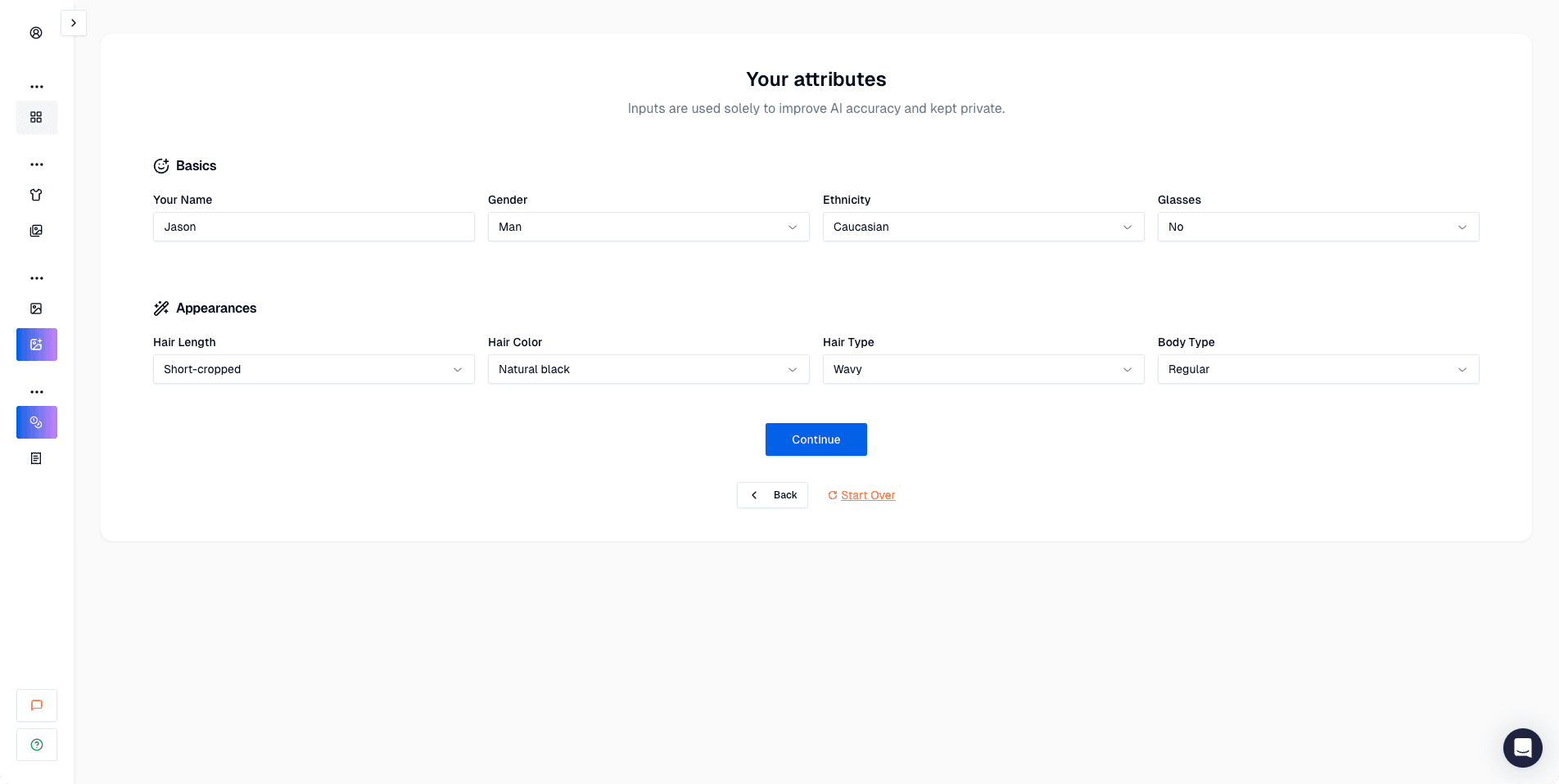 Attributes step. You set baseline details like hair, ethnicity, glasses, and body type.
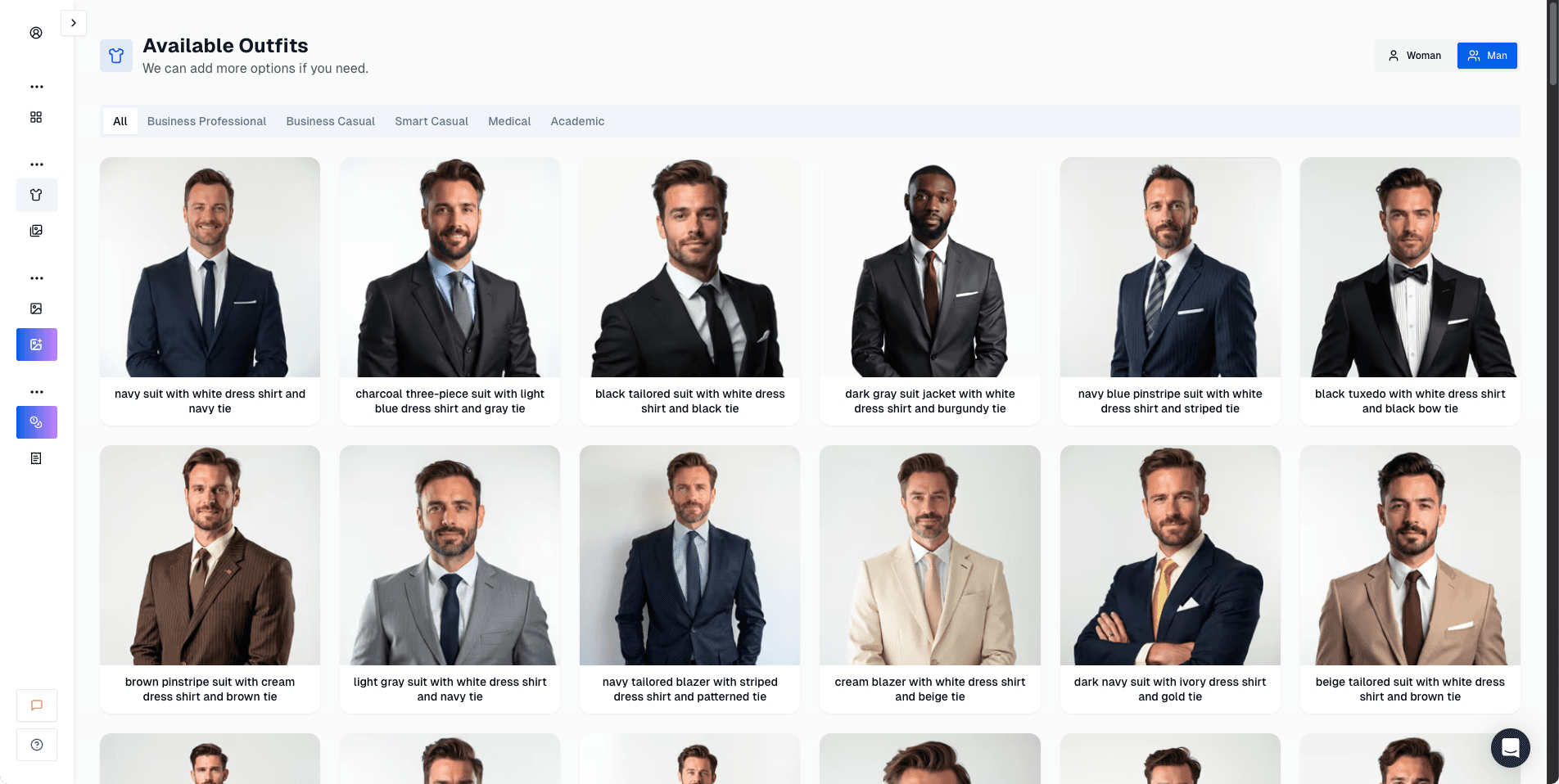 Outfit library. Pick conservative outfits first if you want LinkedIn-ready results.
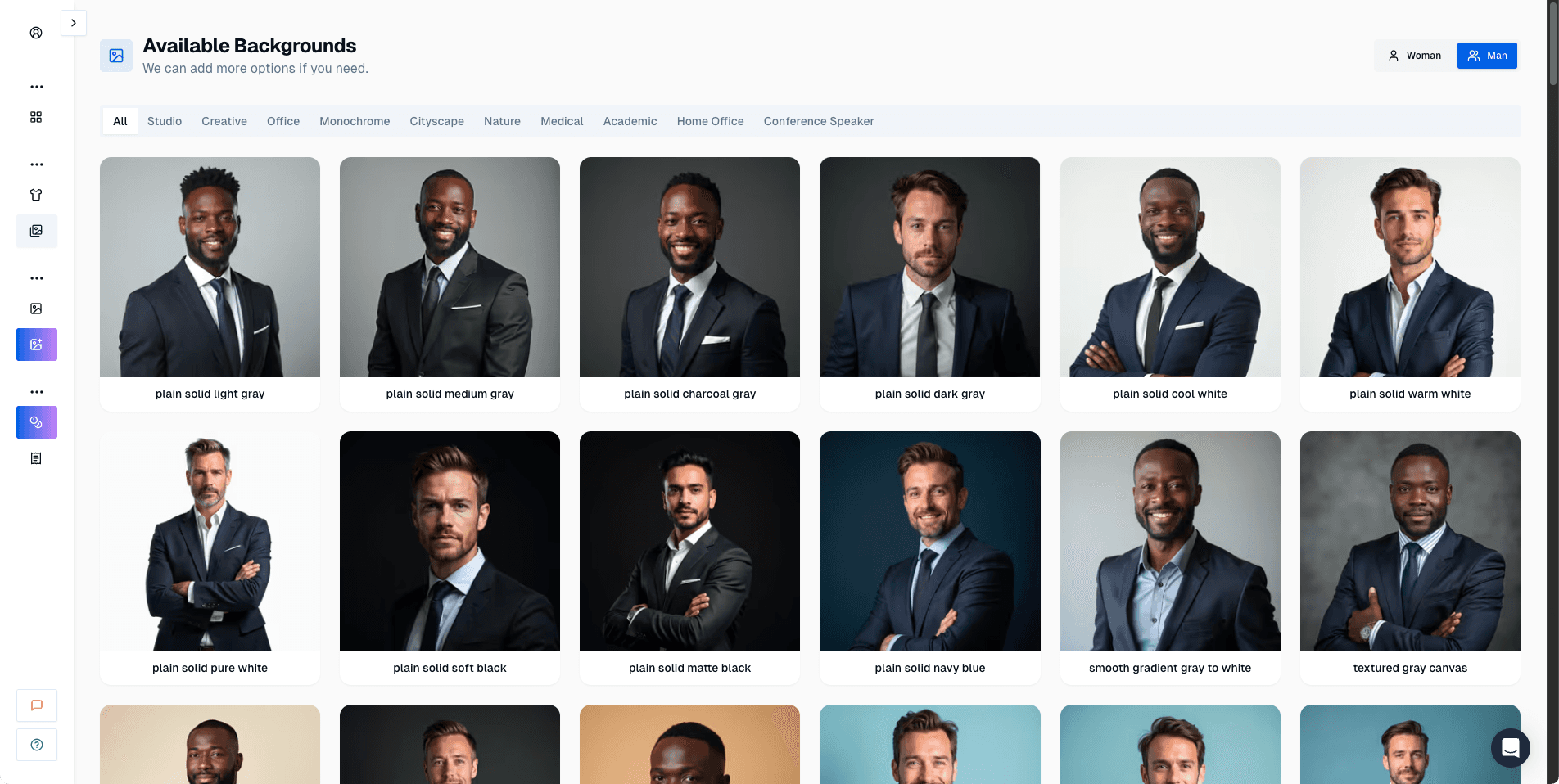 Background library. Simple backgrounds are the safest choice for professional use.
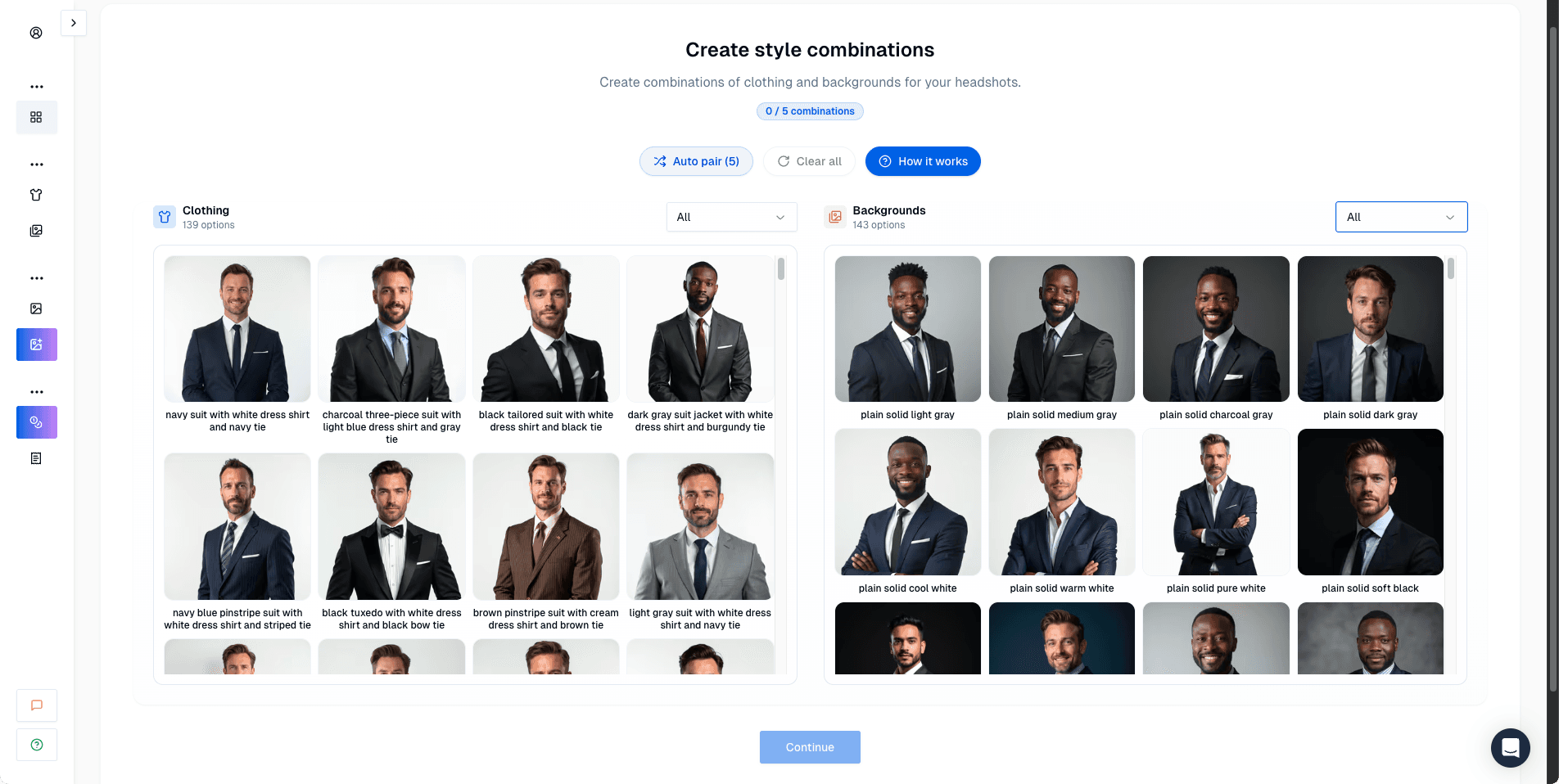 Style pairs. This is the key concept in ProShoot: combine outfits and backgrounds to generate multiple looks.
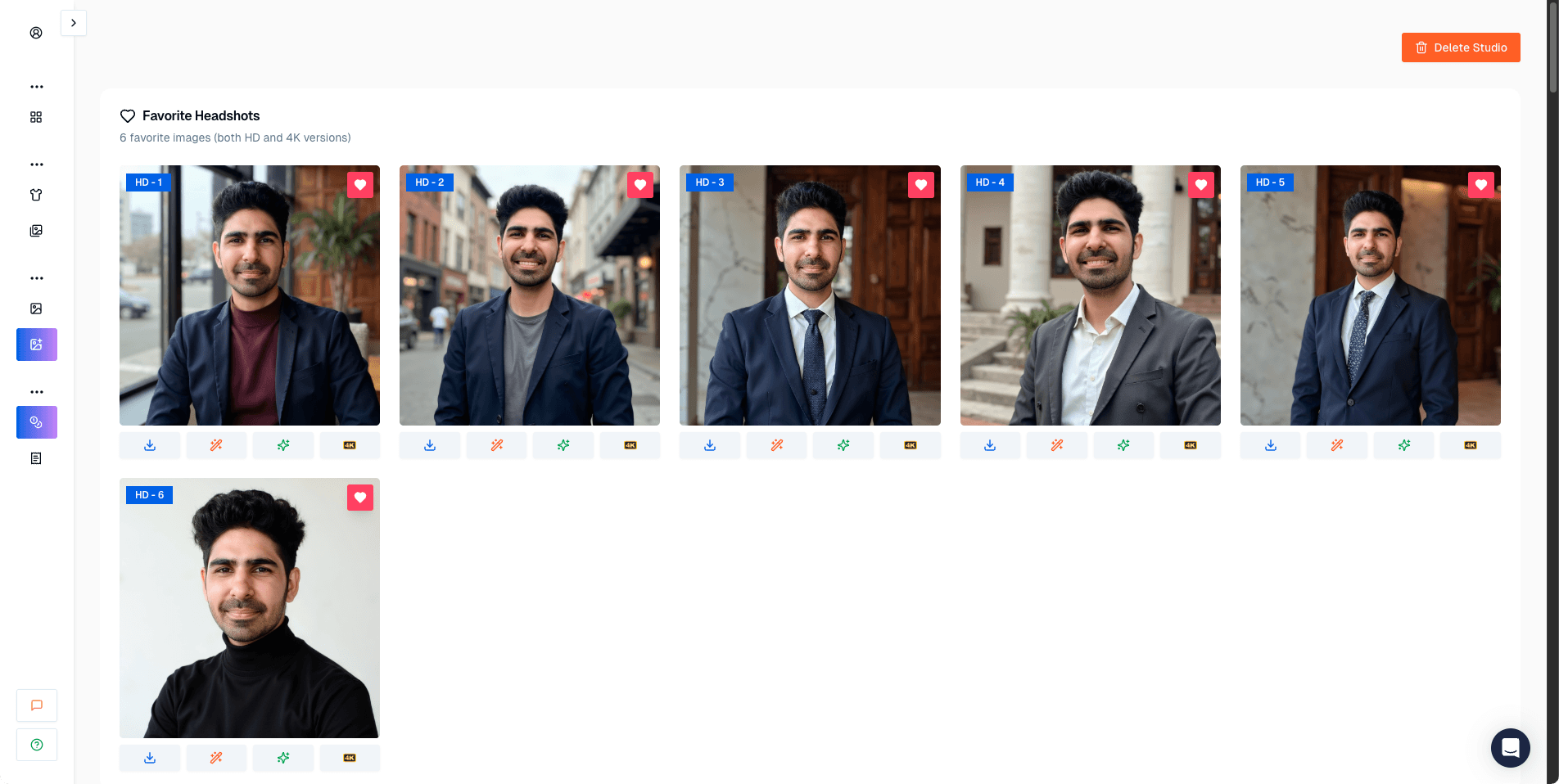 Favorites dashboard. You’ll use this a lot because you’ll get near-misses.
Choose the Right Tool for the Job
Different tools optimize for different outcomes.
- For LinkedIn / team pages / corporate bios (highest face likeness): choose a tool that prioritizes identity preservation. In my testing, ProShoot performed strongly for face likeness and realism.
- For dating/social profiles (style + editability): Aragon AI tends to prioritize presentation and aesthetics and gives you strong customization/editing.
The practical takeaway: pick the tool based on the context you’re using the image in.
Are AI Headshots Worth It?
For most people: yes, if you’re realistic about the tradeoffs.
AI headshots are worth it when:
- you need a headshot quickly
- you don’t have access to a photographer
- you want many options to choose from
- you are fine spending time selecting the best output
AI headshots are not worth it when:
- you need absolute identity accuracy for a high-trust context
- your job/company culture is strict about authenticity
- you don’t have enough usable photos to upload
A good mental model:
- AI headshots are “80% of a studio headshot” for many people.
- Some tools reach higher.
- Some tools are clearly behind.
Are AI Headshots Acceptable for LinkedIn?
Generally: yes, as long as they look like you and don’t look obviously AI-generated.
The acceptable line is simple:
- If a coworker sees it and immediately recognizes you, it’s usually fine.
- If it looks like a slightly different person, it feels misleading.
That’s why face likeness is the core metric.
Are AI Headshots Safe?
This is the most underrated question.
When you use an AI headshot generator, you are uploading personal photos. That can carry risks:
- photos can be stored longer than expected
- photos can be used for model improvement (depending on the policy)
- photos can be processed by third-party services
How to reduce risk:
- use tools with clear deletion policies
- delete your uploads after you download the results
- avoid uploading sensitive backgrounds (IDs, addresses, private locations)
If privacy is critical, read the tool’s privacy policy before paying.
What Is the Best AI Headshot Generator?
The best AI headshot generator depends on what you value most.
If your #1 requirement is face likeness + realistic LinkedIn photos, tools like ProShoot tend to perform better in that direction based on my testing.
I’m not suggesting it as a one-size-fits-all answer (no tool is perfect), but it’s a good example of a generator that prioritizes identity preservation rather than only glamour.
If you want the full breakdown across tools, here’s the all AI headshot generators comparison.
Is There a Free AI Headshot Generator?
Yes, there are free tools.
The tradeoff is usually:
- fewer outputs
- more artifacts
- less control
- weaker face likeness
Free can still be useful if:
- you just need a quick placeholder headshot
- you want to test the concept before paying
But if you need a high-trust professional headshot, paid tools usually give better results and better workflows.
Which AI Headshot Generator Should You Choose? (A Practical Cheat Sheet)
Here’s a simple way to decide without overthinking it:
- If you need the highest face likeness for LinkedIn/team pages, choose a tool that clearly prioritizes realism and identity.
- If you want style-first, glamorous results for social use, choose a tool that prioritizes polish and gives editing controls.
- If you want a minimal onboarding and a clean workflow, choose a tool known for simplicity.
The big mistake:
- choosing based only on “how pretty the thumbnails look.”
Thumbnails hide the two things that matter:
- face likeness
- AI artifacts (teeth, hands, clothing edges)
Common Mistakes That Make AI Headshots Look Bad
- uploading too many similar selfies
- mixing drastically different hairstyles across photos
- using heavily filtered images
- uploading AI-generated photos
- uploading photos with silly faces/expressions
If you fix only one thing, fix your dataset variety.
FAQs
How many photos should I upload for AI headshots?
A good baseline is a varied dataset. In my testing, many tools work best when you upload around 8 to 20 photos, as long as they are clear and not duplicates.
Why do AI headshots look fake?
The most common failure modes are:
- face likeness drifting
- teeth artifacts
- plasticky skin texture
- overly dramatic styles that do not match real life
How do I get AI headshots that look like me?
Use a tool that prioritizes face likeness, and upload a dataset that shows your face clearly across different lighting conditions. Avoid filters and extreme angles.
Final Verdict
If you want to make AI headshots that look professional, don’t obsess over the tool first.
Start with:
- a strong photo dataset
- a clear goal (LinkedIn vs social)
- conservative style choices
Then choose a AI headshot generator that matches your goal.
If you want the full tool-by-tool breakdown, you can 👉 start here.
Try ProshootUse promo code AIHEADSHOT to get additional 10% off.
Use promo code AIHEADSHOT to get additional 10% off.
Use promo code AIHEADSHOT to get additional 15% off.